
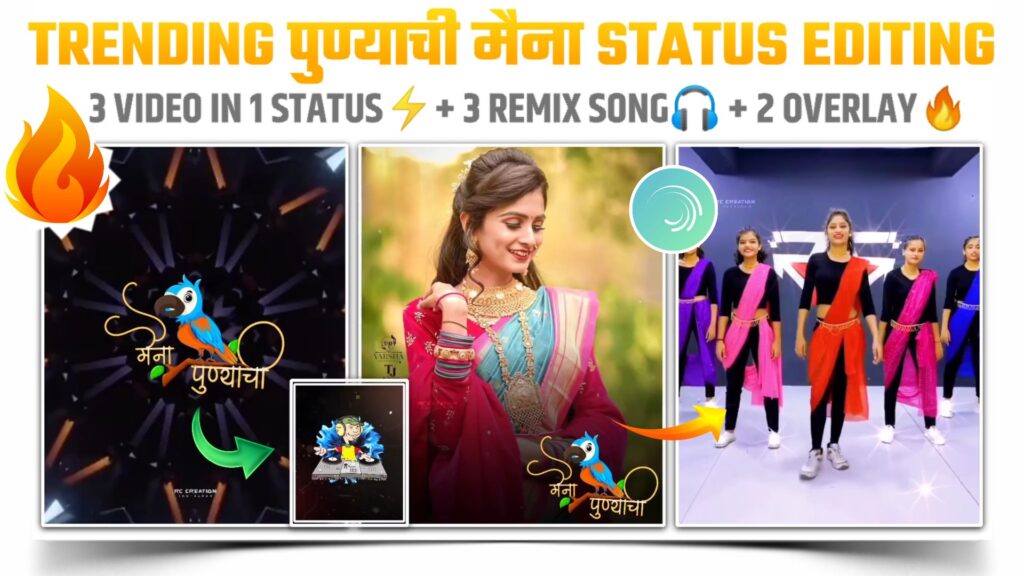
I am YT Creation In this blog we going create a Punyachi maina beat sync status video. This type of status video are trending on instagram. Editing of this type of status are very easy. You just only need to follow below steps.
कैसे हो दोस्तों? उम्मीद करता हूं सब ठीक ही होंगे। दोस्तों आज के ब्लॉग में मैं आपको बताने वाला हूं कि आप किस तरह से जो अभी इंस्टाग्राम पर एक वीडियो ट्रेन में चल रहा है। यह मैं आपको आज के ब्लॉग में बताऊंगा। दोस्तों इस तरह का वीडियो आप काफी आसानी से बना सकते हैं। आपको इस तरह का वीडियो बनाने के लिए सिर्फ नीचे दी गई स्टेप है उन्हें फ़ॉलो करना है। तो चलिए दोस्तों बिना कोई टाइम जाया करें हम अपने ब्लॉग में आगे बढ़ते हैं।
PROVIDED LINKS CREDIT:-RC CREATION
Application For Status:-
To edit punyachi maina beat sync status video you need an help of application called alight motion. If you don’t have this application then i have provided the download link of app below. You can download it from that link.
दोस्तों अगर आपको सॉन्ग कि बीट मार्क करने में कोई परेशानी हो रही है या फिर आप इस टेप को नहीं करना चाहते। तो आप निचे दिए गए बिस्मार्क प्रोजेक्ट को इंपोर्ट कर सकते हो। इस प्रोजेक्ट में मैंने आपके लिए पहले से बीट मार्क करके रखी है। इस प्रोजेक्ट में आपको सॉग भी पहले से जुड़ा हुआ मिल जाएगा।
After installing the app open it and add the mp3 song. You can add mp3 song by using “Audio” option. Now mark the beat present in song. Download link of mp3 song is given below.
Beat Marking:-
If you are facing trouble with the beat marking then you can simply import the below beat mark project. In this beat mark project i have already mark the beats of song for you. Import link of beat mark project is available below.
Open the imported beat mark project and add a black light overlay video here. Set this overlay to full screen and trim it from the position of first red line. Download link of black light overlay video is given below.
Once you add the black light overlay video and set it to fill screen. Now add the “पुण्याची मैना” name text png over the overlay video. You can download this text png by clicking the below url button.
Photo Sync:-
Apply the shake effect to added पुण्याची मैना text png. You can create shake effect by your own or if you need ready made effects. Then you can import below shake effect project by using below link. Import it and apply shake effect to text png.
If you are using old version of alight motion app. Then you can’t import the above preset link but you can import this shake effect project by using below XML file link. Download the XML file and import it into alight motion.
दोस्तों अगर आपको मेरे द्वारा इस्तेमाल की गई फोटो चाहिए तो आपको हमारे टेलीग्राम चैनल से जुड़ जाना है। टेलीग्राम चैनल पर आपको सभी इमेजेस एचडी क्वालिटी में मिल जाएगी। हमारे टेलीग्राम चैनल से जुड़ने की लिंक नीचे दी हुई है।
Now add that image on which you are going to create this beat sync status video and adjust those images between two red line. If need the images that i used in my videos then please join our telegram channel. On telegram channel you will get all the images in HD quality.
Second Beat Sync:-
Come to the position of first red line and add a glass particle overlay video here. This overlay video will increase the attractiveness of your video. Download link of this glass particle overlay video is given below.
You need to add an black shadow png here. This black shadow png provide a background to make our main text more visible. So add this black shadow png from the position of first red line. Download link is given below.
Now add our पुण्याची मैना text png over the black shadow png and extend this black shadow png layer to the duration of 15 second. I have already provided the download link of this text png above.
Now come to the position of beginning of segment two and add the dj clip here. Basically this clip include the illustration of dj and background shock wave video. You can download this dj clip by just clicking below button.
Second Beat Sync Video:-
Here we completed the 60% editing of our video. To proceed further you just need to follow the same steps we we followed during the making of video in segment one. You just need to use the different materials here. Which i have already provided below.
Materials :-
Once you complete the editing of segment 3 section. We have completed the 90% editing of our hole video. Now to complete our video you just need to add an पुण्याची मैना video clip at the end. Download link of this video is available below.
Video Exporting:-
After following all the step mentioned above your video is ready to export. To export the video just click the share button and save your video. If you face any problems regarding this video, then you can refer my youtube video. Link is given below.
If you had any queries about today’s blog then feel free to share with us by using comment box. We will try to solve your queries as early as possible. Thank you for your valuable time
यदि आपको कोई समस्या आती है, तो आप मुझे कमेंट करके बता सकते हैं। आपकी समस्या को जल्द से जल्द हल करने का हर संभव प्रयास किया जाएगा। आपका अमूल्य समय देकर पूरे ब्लॉग को पढ़ने के लिए के लिए बहुत-बहुत धन्यवाद !
0 Comments